
Web browsers store temporary files and website information to make frequently visited pages load faster. These files are commonly known as the cache, while cookies can store information related to website preferences and sessions.
Sometimes outdated browser data can cause pages to display incorrectly, load slowly, or behave differently from expected. Understanding how cache and cookies work can help users troubleshoot common browsing problems when accessing ZZK Game.
This guide explains what browser cache and cookies are, when they may need to be refreshed, and how users can perform basic browser maintenance.
What Is Browser Cache?
Browser cache stores temporary copies of website resources such as images, scripts, stylesheets, and other files.
When you revisit a website, your browser may use these stored resources instead of downloading everything again.
This can improve loading speed, but an outdated cached file can occasionally cause a website to display an older version of a page.
What Are Browser Cookies?
Cookies are small pieces of information stored by websites in your browser.
They can be used for functions such as remembering preferences, maintaining sessions, and supporting certain website features.
Cookies and cached files serve different purposes, so clearing one does not necessarily remove the other.
When Should You Consider Clearing Cache?
You may consider refreshing browser data when you notice unusual website behavior.
Common situations include:
- A page appears outdated.
- Images are not displaying correctly.
- Website elements look misaligned.
- A page keeps showing an older version.
- Certain buttons or menus do not respond normally.
- The website behaves differently after an update.
Before clearing everything, try refreshing the page first. A normal refresh may be enough for temporary problems.
How to Clear Cache in a Browser
The exact process varies between browsers, but the general steps are similar.
Step 1: Open Browser Settings
Open your browser’s settings menu and locate the privacy or browsing-data section.
Step 2: Find Browsing Data
Look for an option such as Clear Browsing Data, Clear History, or a similar setting.
Step 3: Select Cached Files
Choose the option for cached images and files.
If you do not want to remove other stored information, review the available options carefully before confirming.
Step 4: Clear the Selected Data
Confirm the action and wait for the browser to finish processing.
Step 5: Reopen the Website
Close or refresh the browser and visit the website again to check whether the issue has been resolved.
Should You Clear Cookies Too?
Not every browser problem requires deleting cookies.
Cookies may contain information related to website sessions or preferences. Removing them can sometimes sign you out of websites or reset certain preferences.
Therefore, consider clearing cookies only when they are relevant to the problem you are experiencing.
Always review what your browser will remove before confirming the action.
Try a Private Browsing Window
A private or incognito window can be useful for basic troubleshooting.
Open a private browsing window and access the website again. If the page behaves differently there, the issue may be related to stored browser data, extensions, or browser settings.
Private browsing is therefore a useful diagnostic step before making larger changes.
Disable Unnecessary Browser Extensions
Browser extensions can sometimes interfere with website functionality.
Ad blockers, privacy extensions, script controls, and other add-ons may change how certain websites load.
If a page is not working correctly, temporarily turning off unnecessary extensions can help identify whether an extension is responsible.
Only turn off extensions that you trust and remember to restore your preferred settings afterward.
Check for Browser Updates
An outdated browser can sometimes have compatibility problems with modern websites.
Check your browser’s official update section and install available updates when appropriate.
Keeping the browser current can provide:
- Security improvements
- Bug fixes
- Better website compatibility
- Performance improvements
- Support for newer web technologies
What If the Problem Continues?
Clearing cache and cookies does not solve every website problem.
If the issue continues, check your internet connection and try another supported browser. You can also test the website on another compatible device.
A simple troubleshooting sequence is:
- Refresh the page.
- Check the internet connection.
- Try private browsing.
- Check browser extensions.
- Update the browser.
- Clear cached files if necessary.
- Try another supported browser.
- Check the platform’s official support information.
This approach can help identify whether the problem comes from the browser, device, network, or website itself.
Cache vs Cookies: What’s the Difference?
| Cache | Cookies |
|---|---|
| Stores temporary website files | Stores website-related information |
| Helps pages load resources faster | Can remember sessions and preferences |
| May become outdated | May expire or be removed |
| Clearing it can refresh page resources | Clearing it may sign you out |
| Useful for display/loading troubleshooting | Useful when session or preference data may be causing an issue |
Understanding this difference can help you choose the appropriate troubleshooting option instead of deleting all browser data unnecessarily.
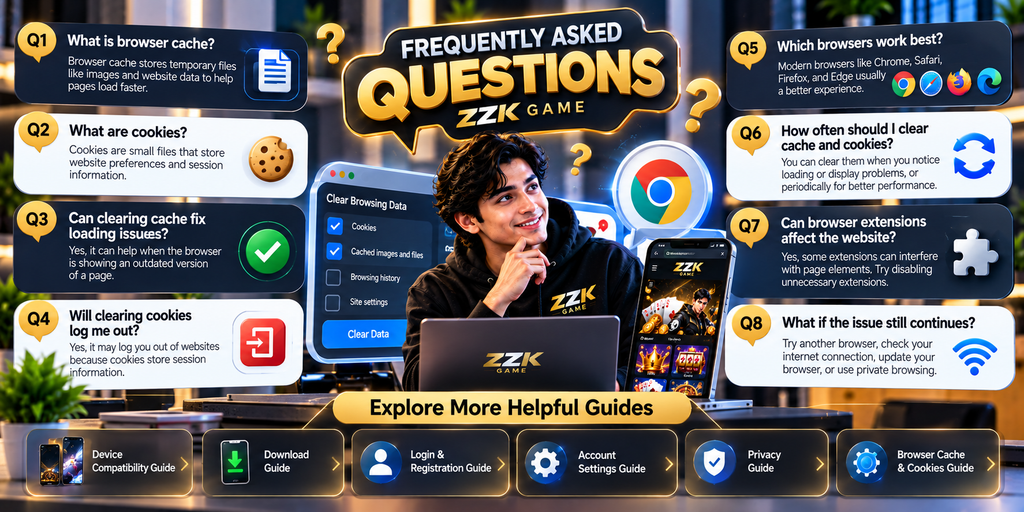
Frequently Asked Questions
What is ZZK Game browser cache?
ZZK Game browser cache refers to temporary website files stored by your browser while accessing the site.
Can clearing cache fix a page that looks outdated?
It can sometimes help when your browser is displaying an older cached version of website resources.
Will clearing cache delete my browser passwords?
Normally, cached files are separate from saved passwords, but browser clearing tools contain multiple options. Always check the selected data types before confirming.
Will clearing cookies log me out?
It can. Cookies may contain session information, so removing them can require you to sign in again on some websites.
Can browser extensions affect website loading?
Yes. Some extensions can interfere with scripts, page elements, or other website functions.
What should I do if clearing cache does not help?
Try another supported browser, check your internet connection, update your browser, or use the platform’s official support resources if the problem remains.
Conclusion
Browser cache and cookies are normal parts of everyday web browsing, but outdated or conflicting browser data can occasionally affect how websites appear or function while accessing ZZK Game.
Understanding the difference between cache and cookies makes troubleshooting easier. Before deleting stored information, identify the problem, try simple steps such as refreshing the page or using private browsing, and clear only the data that is relevant to the issue.
For a smoother browsing experience, keep your browser updated and regularly review unnecessary extensions and stored browser data.